

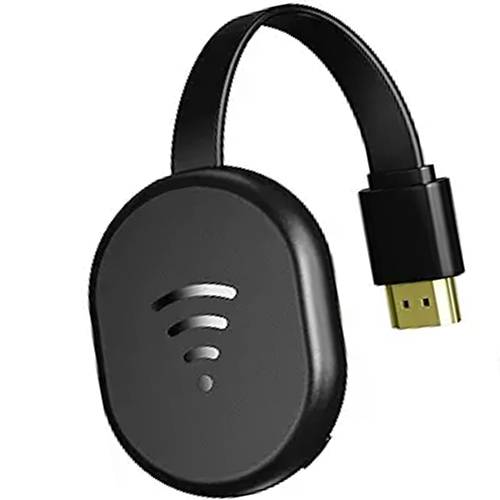
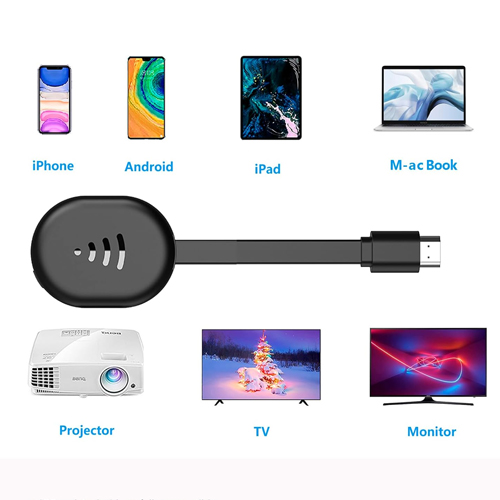
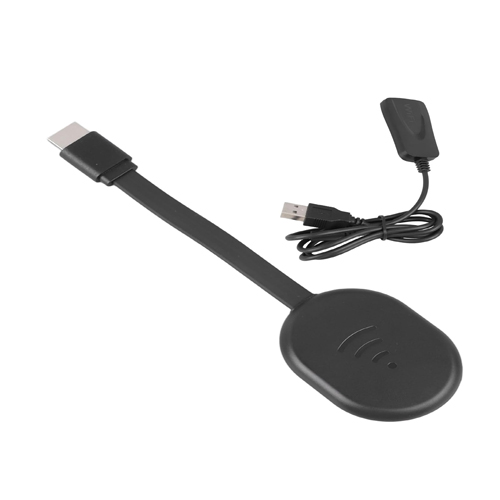
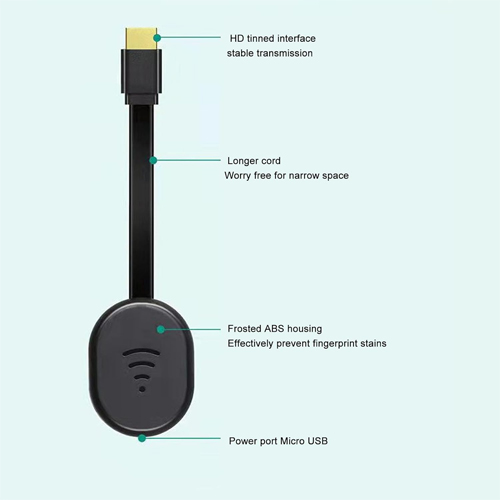
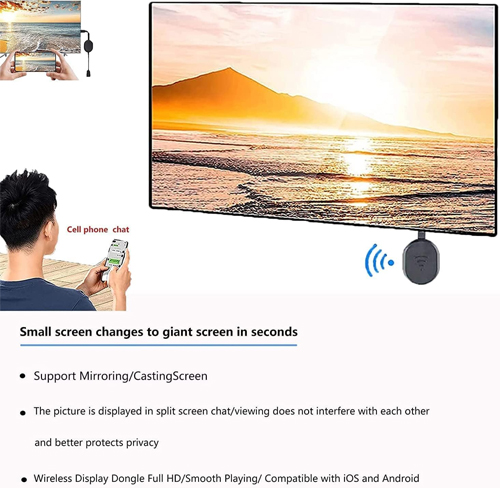
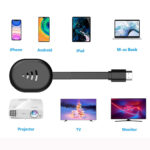
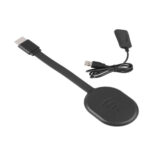
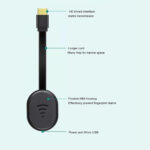
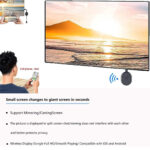
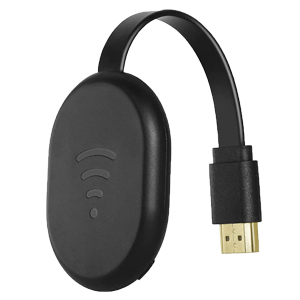
The wireless HD display adapter lets you wirelessly mirror all your favorite HD content from your Android and iOS device to a larger, high-definition TV screen, No need to install APP. This means you can share your photos on the big screen, and viewing Zoom / Teams meetings,allows you to use your HDTV as a 2nd monitor for your MacBook Pro Air and windows devices.
Get it so your small screen content is displayed on the big screen.

Physical Setup:
1.Connect the dongle to the TV’s HDMI port.
2.Connect the dongle’s USB cable to the TV’s USB port or a USB power block.
3.Turn on the TV and set the input to the dongle’s HDMI port.
4.Make sure the device’s blue main screen appears on the TV.
Android System Mirroring
1.Confirm that the device’s blue main screen appears on the TV.
2.In the “Cast ” function, select the ‘Cattv-XXXX’ device, wait for a few seconds, and the phone screen will automatically appear on the TV after a successful connection.
iOS System Mirroring
1.Go to Settings > Wi-Fi > OTHER NETWORKS > select “Cattv-XXXX” and enter the password “12345678”
2.Tap “Screen Mirroring” > choose “Cattv-XXXX”
Note: Android systems can use the mirroring function while connected to home Wi-Fi, but Apple devices need to have phone data enabled to use the mirroring function.
No account yet?
Create an Account